
BILL PAYMENTS
- Once logged into GO Banking, access your main menu by clicking on the toggle aka ‘Hamburger’ icon
 at top left of your dashboard. Select the following:
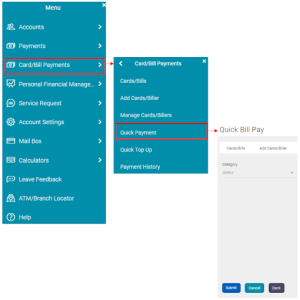
- From the ‘Quick Bill Pay’ screen input your payment details and click

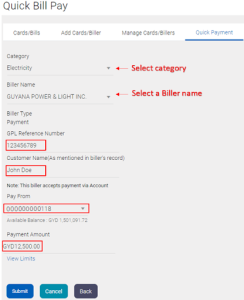
- Subsequently you will be asked to confirm the payment, click Confirm to process the transaction.
- If you have a Biller added to your profile, you can pay your bill by clicking the pay bill icon
 shortcut at your Quick Link widget. The screen below will appear for you to select a Biller and click
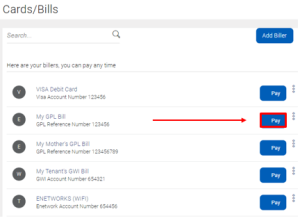
- Once Pay is clicked above, the screen below will appear for you to input your transaction amount and click
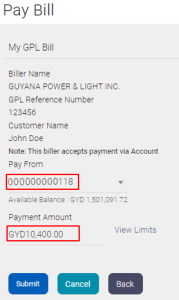
NB: If you have several accounts, use the dropdown alongside your account to select a different debit account
VISA CARD PAYMENTS
You can pay your VISA card in one of two ways:
- Ad hoc Payments (Quick Payment)
- Pay through a managed Biller (Manage Biller)
AD HOC PAYMENTS
This allows you to quickly pay your VISA card in a one-off instant. Once you’ve paid on the card, the information is not stored for future retrieval i.e. you will have to re-enter the card information the next time you visit GO-Banking.
- Once logged into GO Banking, click on the toggle aka ‘Hamburger’ icon to view your menu.
- From the menu select
 then click
- Select VISA Card Payments from the dropdown.
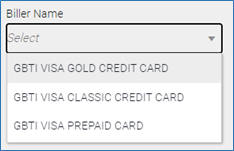
- Under ‘Biller Name’ select the type of VISA Card Payment:
- GBTI VISA CLASSIC CREDIT CARD
- GBTI VISA GOLD CREDIT CARD or
- GBTI VISA PREPAID CARD
- Input your VISA Card details (Card Holder Name and Card Account Number)
- Select your Debit Account to facilitate the payment
- Enter Payment Amount
- Click Submit followed by Confirm to complete the payment.
PAY THROUGH A MANAGED BILLER
This option allows you to store your VISA Card Payment details for easy payments in the future. Once logged into GO Banking, click on the ‘Hamburger’ icon to view your menu.
- Click on
- Select the

- Select VISA Card Payments from the dropdown.
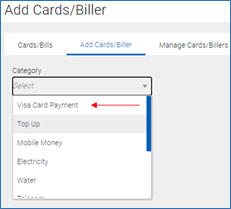
- Select your card type
5. Input your VISA Card details (Card Holder Name and Card Account Number)
6. Click Submit to add Biller.
7. Once the Biller is added successfully, revisit your Dashboard and click 
8. Locate the Biller added above and click Pay.
9. Select your Debit Account to facilitate the payment
10. Enter Payment Amount
11. Click Submit followed by Confirm to complete the payment.
NB: Not that you’ve added this Biller to your profile, simply follow steps 7-11 to execute future payments.